
Your first order, part 2: take it to shipped
In this tutorial you’ll take the order you submitted in part 1 all the way to Shipped. You’ll add shipping and other charges, accept the order, set a ship date, and move it through production.
It takes about ten minutes.
Before you start
Section titled “Before you start”Finish part 1 first. You need its order, in Submitted status.
Find the order
Section titled “Find the order”-
In the left menu, select Orders.
-
In the filter box, replace the text with
lee status:submittedand press Enter.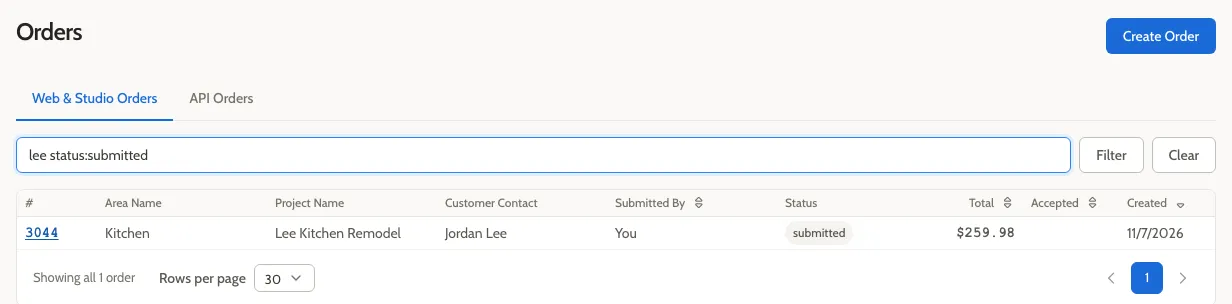
-
Select the order’s number to open it.
The top of the order shows a Submitted status badge. The main button at the top right is the next step: Accept Order.
Add shipping and other charges
Section titled “Add shipping and other charges”-
Select the Line Items tab.
-
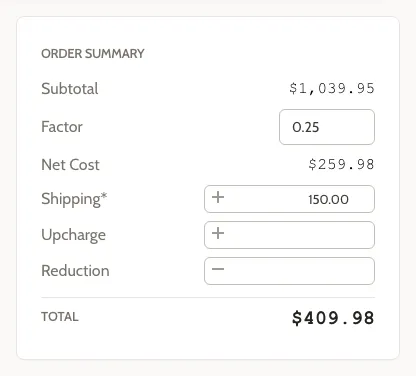
In the Order Summary box, type
150in Shipping, then press Tab. -
If any other field in the Order Summary is marked with an asterisk (*), your shop requires that charge too. Type
0in it and press Tab.The Total updates to include the charges you entered.
If Factor appears, leave it unchanged. In this case, Total uses Net Cost (Subtotal × Factor) as its starting amount.
Accept the order
Section titled “Accept the order”You created this order and shared it with your team, so it doesn’t go back to anyone to confirm: you accept it yourself.
-
Check the Total. For a real order, this is when you’d check it with the customer.

-
Select Accept Order.
-
When you’re asked to accept the order, select Accept order.
The status changes to Accepted, and the price is now locked. The main button changes to Release to Production.
Set a ship date and release it
Section titled “Set a ship date and release it”-
Select the Details tab.
-
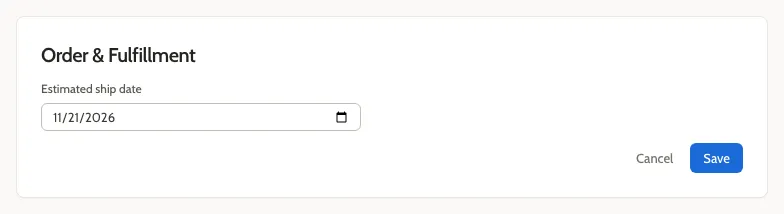
On the Order & Fulfillment card, select Edit.
-
Choose a date two weeks from today in Estimated ship date, then select Save.
-
Select Release to Production.
The status changes to In Production.
Finish the order
Section titled “Finish the order”-
Select Mark as Staged. The status changes to Staged.
-
Select Mark as Shipped. The status changes to Shipped.
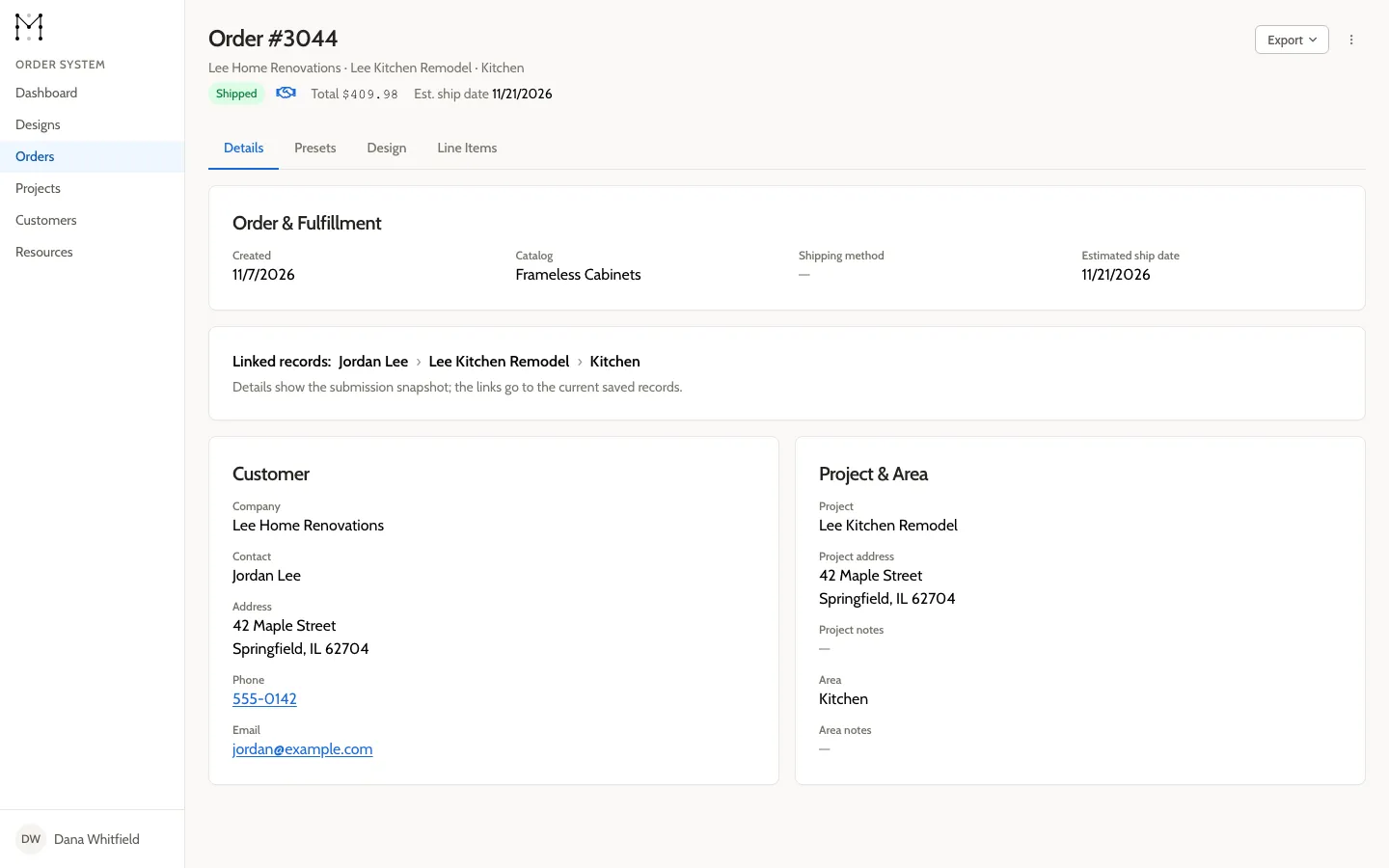
The order is complete.
What you did
Section titled “What you did”You moved an order from submission to shipped:
| You selected | The status became |
|---|---|
| Accept Order | Accepted |
| Release to Production | In Production |
| Mark as Staged | Staged |
| Mark as Shipped | Shipped |
Next steps
Section titled “Next steps”- When a designer creates an order, you select Confirm with Submitter instead, and the designer accepts it. Learn why in How an order moves from quote to shipped.
- Look up what each status allows in Order statuses.
- When an order needs to change after it’s submitted, see Change an order after submission.