
Price and confirm an order
When an order is submitted, you set the final charges and send it to the submitter to accept. You can only do this while the order is Submitted.
If the order is shared with the team and its submitter, the person who created it, is an Order Manager, it doesn’t go back to them: you set the charges and accept it yourself.
Set the charges
Section titled “Set the charges”- Open the order and select the Line Items tab.
- In the Order Summary box, type the shipping price in Shipping, then press Tab to save it.
- If your catalog has adjustments (the fields below Shipping), set them.
- If your organization uses a net cost factor, change Factor in the Order Summary if you need to, then press Tab. See Order Summary and totals.
Charges can’t be changed after you confirm or accept the order, so check them before moving on.
(Optional) Add manufacturer notes
Section titled “(Optional) Add manufacturer notes”While the order is Submitted, you can add a note to any line item, such as an instruction for your shop.
- On the Line Items tab, select the arrow next to a line item’s product code to show its details.
- Select Add manufacturer notes.
- Type the note, up to 512 characters. It saves as you type.
The submitter can read these notes once you confirm the order, so write them with that in mind.
(Optional) Change the shipping method
Section titled “(Optional) Change the shipping method”- Select the Details tab.
- On the Order & Fulfillment card, select Edit.
- Choose a Shipping method, then select Save.
Send it to the submitter
Section titled “Send it to the submitter”Select Confirm with Submitter.
The status changes to Pending Confirmation, and the order waits for its submitter, the person who created it, to accept it. If someone else created the order, there’s no main button while you wait.
The submitter gets an email only if they’ve turned on Submitter Order Events in their notification settings. If you’re not sure they have, let them know yourself. When they accept, Order Managers with order emails turned on get an email.
If you created the order yourself, Accept Order is now the main button. Check the total with the customer first, then accept it.
If the main button is Accept Order
Section titled “If the main button is Accept Order”An order that’s shared with the team and whose submitter is an Order Manager or admin doesn’t need the submitter’s confirmation. Its main button is Accept Order instead of Confirm with Submitter, for any Order Manager.
- Check the total. If you’re entering the order for a customer, confirm it with them.
- Select Accept Order.
- When you’re asked to accept the order, check the total it shows, then select Accept order.
The status changes to Accepted, and the charges are locked. If someone else created the order, they get one email saying no further confirmation is needed, if they’ve turned on order emails.
If you see “Not ready”
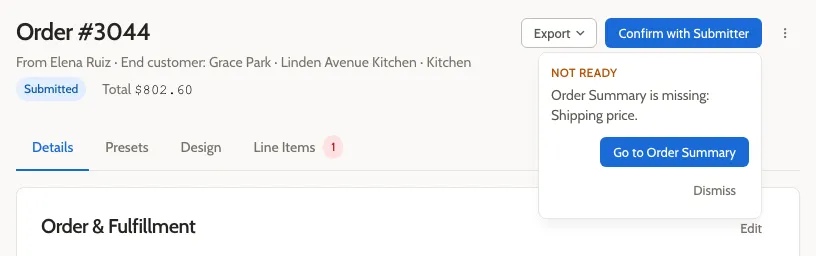
Section titled “If you see “Not ready””If Shipping or a required adjustment is missing, Mattersmith shows a Not ready message instead of confirming or accepting the order. Select Go to Order Summary, fill in the field marked with an asterisk (*), and try again.
Related
Section titled “Related”- Return an order to quote if the submitter needs to change the order first.
- Release an order to production once it’s accepted.
- Order Summary and totals explains every row and how the total is worked out.