
Change a line item
You can change line items while the order is a Quote, if you created it or it’s shared with your team. After the order is submitted, line items are read-only.
There are two places to make changes:
- In the table, for the quantity, ID, and the options your catalog shows as columns.
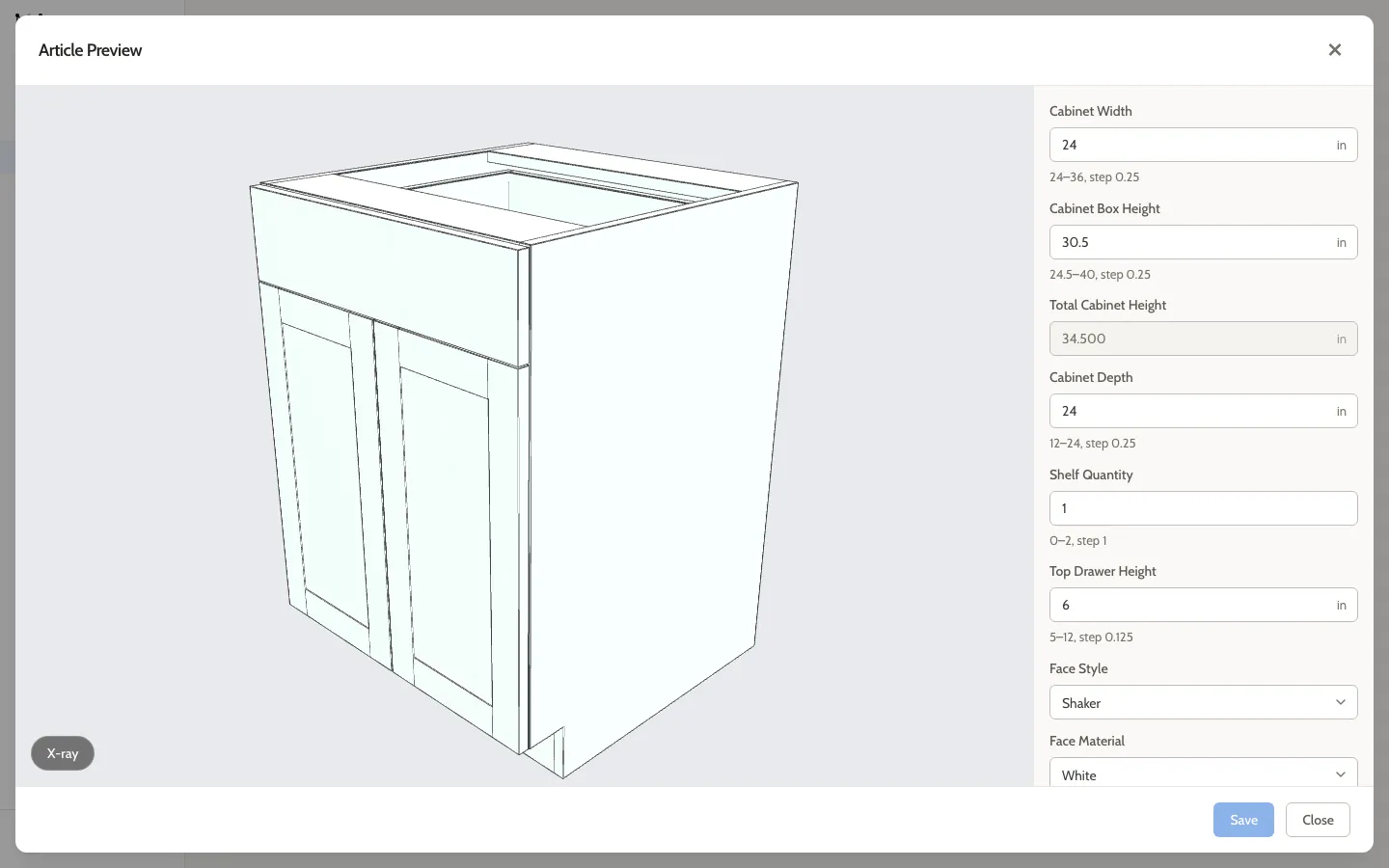
- In the configurator, for every option the product has, with a 3D view.
Change it in the table
Section titled “Change it in the table”-
On the Line Items tab, select the pencil icon in the line item’s row (Edit line item). You can also select any cell in the row.
-
Change Qty, ID, or any option in the row.
While you have unsaved changes, Ext. Price shows “–”.
-
Select the disk icon (Save line item changes) to save, or the undo icon (Cancel line item changes) to throw the changes away.

If you opened a row by mistake and haven’t changed anything, select the check icon (Done editing line item) or press Escape.
You can only edit one row at a time. Save or cancel it before starting on another.
Change it in the configurator
Section titled “Change it in the configurator”The configurator shows the product in 3D and has every one of its options, including ones that aren’t columns in the table.
- Select the gear icon in the line item’s row (Edit line item in configurator).
- In Article Preview, change the options on the right. The 3D view updates as you go.
- Select Save to update the line item, or Close to leave it as it was.
Save is only available once you’ve changed something.
If you change an option that’s also one of the order’s presets, a warning icon appears in the row: Line item configuration differs from order preset values. That’s fine if it’s what you intended. Saving new preset values later applies them to every line item, replacing the change.
After the order is submitted, the gear becomes an eye icon (View line item in configurator), and the configurator opens read-only.
Add submitter notes
Section titled “Add submitter notes”If your organization turns on submitter notes, the person who created the order can add a note to any line item while it’s a Quote.
- Select the arrow next to the line item’s product code to show its details.
- Select Add submitter notes.
- Type the note, up to 512 characters. It saves as you type.
Order Managers add manufacturer notes after the order is submitted. See Price and confirm an order.
Cabinets from the Room Planner
Section titled “Cabinets from the Room Planner”Line items placed on the Design tab show a cube icon. Their quantity and options are managed in the Room Planner: select the cube icon to jump to the cabinet there, and see Change a cabinet’s options. In the table, you can still change their ID, label columns, notes, and position in the list.