
Find a project
-
In the left menu, select Projects.
-
In Search projects, type part of the project’s name, or its customer’s name or company. If you’re an Order Manager, it also finds projects by who created them.
Order Managers see every project in the organization, with who created each one on its card; check Only my projects to see just yours. Designers see only projects they created.
If the project doesn’t appear, check what you typed, and clear Only my projects if it’s checked. If it might be archived, check Include archived. When nothing matches, the page says why and offers ways to widen the list.
-
Select a project to open it.
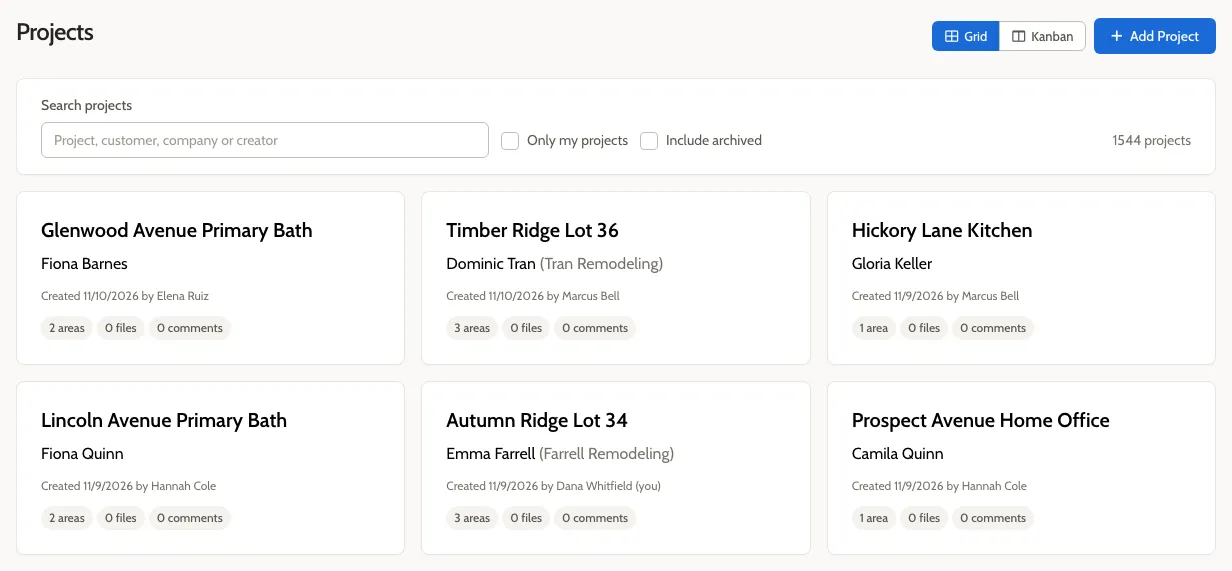
Each card shows the project’s customer, when it was created, and how many areas, files, and comments it has. For Order Managers it also says who created the project, with “(you)” after your own.
To find a customer’s projects, you can also open the customer’s page: their projects are listed there.
See orders by project
Section titled “See orders by project”Select Kanban to see orders grouped by project, with a column for each status. It lists the same projects as the grid. Each project’s row names its customer and, for Order Managers, who created it.
The Kanban starts by showing every status except Canceled and Rejected; for designers, it also leaves out Submitted and Accepted. Change the statuses in the box at the top right, or select Show all in the note that says how many orders are hidden. Your choice of statuses is remembered.
A project with no orders in the chosen statuses gets no row. A note above the rows says how many projects that leaves out.
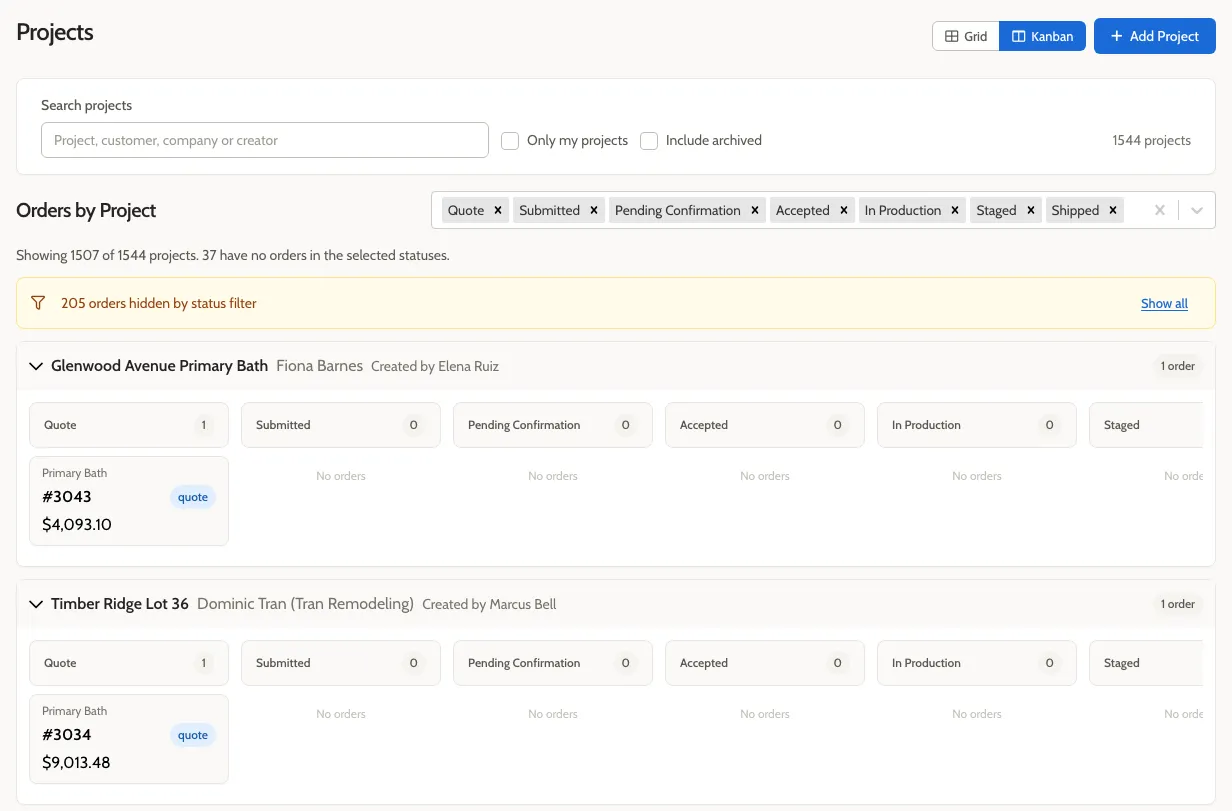
Select an order number to open it. Select Grid to go back to the project cards.
Include archived projects
Section titled “Include archived projects”Archived projects are hidden. Check Include archived to list them, each with an Archived badge. The page remembers this choice, and Clear filters leaves it as it is. See Archive a project or area.