
Reject an order
You can reject an order while it’s Submitted, Pending Confirmation, or Accepted.
- Open the order.
- Select More actions (the ⋮ button at the top right).
- Select Reject.
- Type the reason in Why are you rejecting this order?
- Select Reject Order.
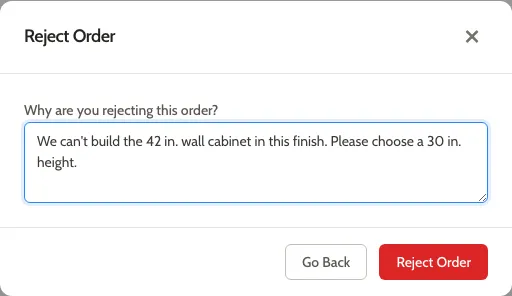
The status changes to Rejected.
Tell the submitter
Section titled “Tell the submitter”Mattersmith doesn’t email the submitter when you reject an order, and the reason doesn’t appear on the order’s page. Let the submitter know yourself, and tell them why.
The reason does show on the order’s card in its project’s or area’s Orders tab. Rejected orders are hidden there at first; select Show all above the list to see them. Orders that aren’t linked to a project don’t show their reason anywhere.
Find rejected orders
Section titled “Find rejected orders”Rejected orders don’t appear on the Orders page by default. To see them, replace the text in the filter box with status:rejected and press Enter.
Related
Section titled “Related”- Cancel an order is for when the customer calls an order off.
- Duplicate an order to start again from a rejected order.