
Add line items to an order
Each line item is one product from the order’s catalog. You can add line items while the order is a Quote, if you created it or it’s shared with your team. The order’s presets have to be set first: until they are, the Line Items tab says “Set this order’s presets before adding line items” and offers Go to Presets.
Add a line item
Section titled “Add a line item”-
Open the order and select the Line Items tab.
-
Select Add Line Item.
On an order with no line items, an empty row is already waiting.
-
In Product Code, choose a product. Type part of its code to narrow the list, or browse the catalog if you don’t know the code.
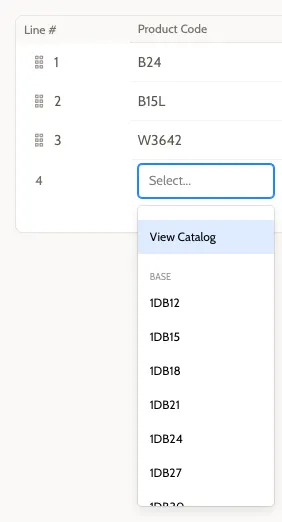
The row fills in with the product’s options, each set to its default value. The columns come from your catalog.
-
Type a number in Qty. It’s the only value you have to enter; the save button stays unavailable until it’s filled in.
-
Change any other options in the row if you need to. ID is optional: up to 8 characters, and no two line items on an order can share one.
-
Select the save button (the disk icon) at the end of the row.
The line item’s price appears in Ext. Price, and the Order Summary shows the new subtotal.
To look at the saved product in 3D, select the gear icon in its row to open Article Preview, then select Close when you’re done. To change its options there, see Change a line item.
To add another, select Add Line Item again. You add one line item at a time: Add Line Item is unavailable until the current new row is saved or removed.
If a box in the row turns red and the save button stays unavailable, check Qty has a number of at least 1, and that ID isn’t already used by another line item.
Discard a new row
Section titled “Discard a new row”To throw away a new row before saving it, select the trash can icon at the end of the row (Cancel add line item). If you’ve already picked a product, it asks you to confirm.
Browse the catalog
Section titled “Browse the catalog”When you don’t know a product’s code:
- In a new row, open Product Code and choose View Catalog, the first option in the list. It only appears before you start typing.
- In Select a Product, type in Filter Products… to narrow the list by code or description.
- Select Select on the product you want. Its button changes to Selected.
- Select Save Selection.
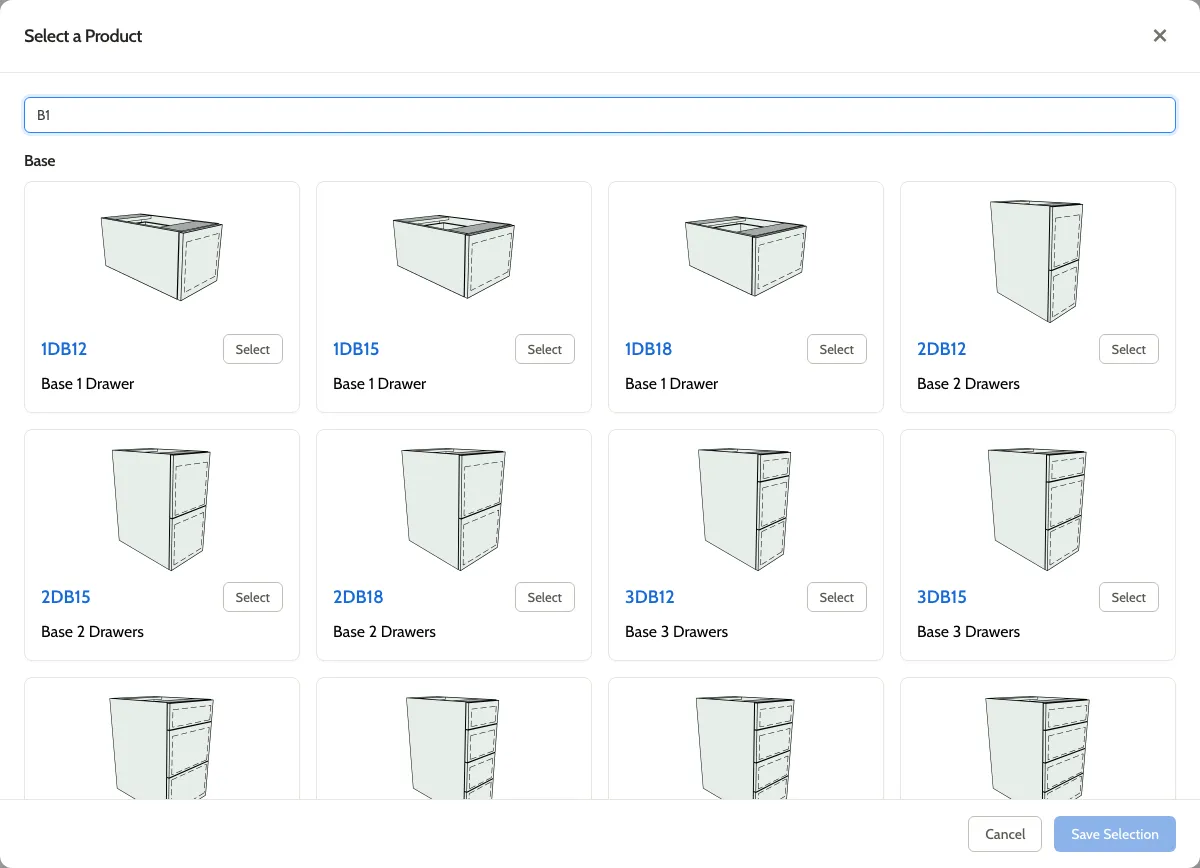
The product goes into the row, and you carry on from step 4 above.
Cabinets from the Room Planner
Section titled “Cabinets from the Room Planner”Cabinets placed on the order’s Design tab appear as line items too, marked with a cube icon. Add, remove, and configure those in the Room Planner, not here. See Place and arrange cabinets.
Related
Section titled “Related”- Change a line item, including in 3D
- Reorder line items
- Delete a line item