
Reorder line items
You can reorder line items while the order is a Quote, if you created it or it’s shared with your team, and it has at least two saved line items. Line items from the Room Planner can be reordered too. Each line item has a handle in the Line # column (Drag to reorder, or click for move options).
Line numbers update to match the new order.
Drag it
Section titled “Drag it”Drag the line item’s handle up or down, and drop it where you want it.
Use the move dialog
Section titled “Use the move dialog”- Select the line item’s handle.
- In Move line N, either:
- select Move up or Move down to move it one place, or
- type a line number in Move to line, then select Move.
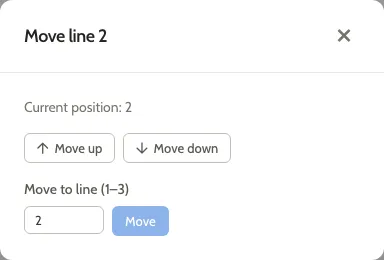
The dialog closes and the line item moves. Moving it to another position shifts the line items in between; it doesn’t swap two lines.
Use the keyboard
Section titled “Use the keyboard”- Press Tab until the line item’s handle has focus.
- Press Space to pick up the line item.
- Press the Up or Down arrow keys to move it.
- Press Space to drop it, or Escape to put it back.
Or press Enter on the handle to open the move dialog.