
Accept an order
This page is for an order in Pending Confirmation: an Order Manager has priced it and sent it back for its submitter, the person who created it, to accept. Usually only the submitter can accept it; Permissions says when other Order Managers can too.
If you’re an Order Manager and your order is shared with the team, as it is by default, it skips Pending Confirmation. Accept it straight from Submitted: see Price and confirm an order.
- Open the order. Its status is Pending Confirmation.
- On the Line Items tab, check the charges in the Order Summary and the Total.
- If you’re entering the order for a customer, confirm the total with them.
- Select Accept Order.
- When you’re asked to accept the order, check the total it shows, then select Accept order. You can’t cancel the order after accepting it.
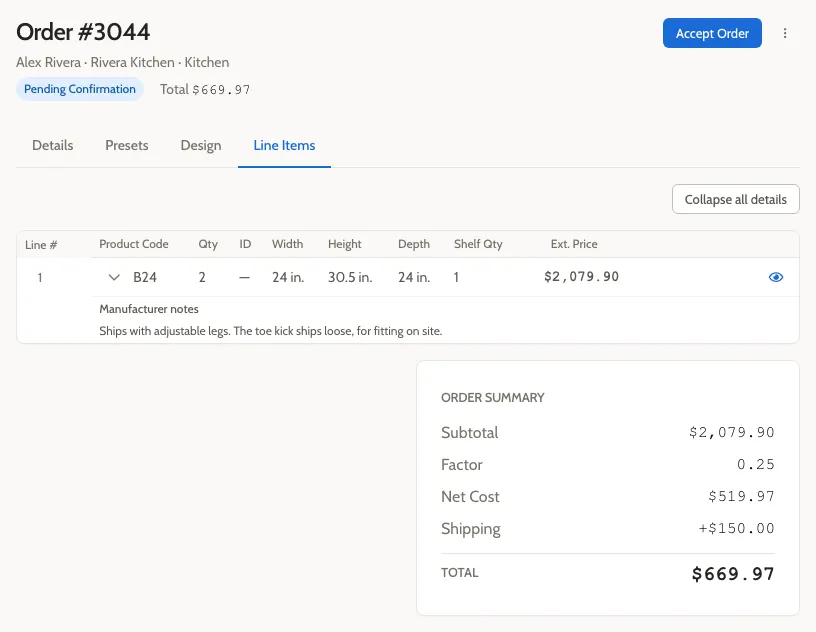
The status changes to Accepted. Order Managers who have order emails turned on get an email.
If the price isn’t right
Section titled “If the price isn’t right”The price can’t be changed once an order is in Pending Confirmation, not even by an Order Manager. To start over:
- Cancel the order.
- Duplicate it. You get a new quote with the same line items.
- Make any changes, and submit the new quote. It’s priced again from the start.
An Order Manager can also reject the order instead.