
Your first quote as a designer, part 1: build and submit it
In this tutorial you’re a designer at a dealer. A homeowner wants a new kitchen, and you’ll turn that into a quote your manufacturer can price. You’ll add the homeowner as a customer, build the quote, and submit it.
It takes about fifteen minutes. In part 2, you’ll accept the price once your manufacturer has confirmed it.
Before you start
Section titled “Before you start”You need:
- The Designer role. If you’re an Order Manager, start with Your first order instead.
- At least one catalog from your manufacturer. Every manufacturer has its own catalogs, so the presets and products you see will differ from the screenshots here. That’s expected.
The tutorial uses a made-up homeowner, Alex Rivera.
Add the customer
Section titled “Add the customer”- In the left menu, select Customers.
- Select Add Customer.
- Fill in the homeowner’s details:
- Name: Alex Rivera
- Email: alex@example.com
- Phone Number: 555-0177
- Select Add project and name it “Rivera Kitchen”.
- Under the project, select Add area and name it “Kitchen”.
- Select Add address and fill it in:
- Address 1: 18 Birch Lane
- City: Madison
- State: WI
- Zip: 53703
- Select Create Customer.
Alex Rivera’s page opens, with Rivera Kitchen listed under Projects. Your customers are yours: other designers don’t see them, but the Order Managers at your manufacturer can.
Add the project’s address
Section titled “Add the project’s address”The project’s address is where the cabinets will be installed. A quote can’t be submitted without it.
- Under Projects, select Rivera Kitchen.
- On the Overview tab, select Edit Details.
- Fill in the same address as the customer: 18 Birch Lane, Madison, WI, 53703.
- Select Save.
The Details card now shows the address.
Create the quote
Section titled “Create the quote”-
In the Details card, select Alex Rivera to go back to the customer’s page.
-
Under Orders, select Create Order.
-
Choose Rivera Kitchen as the Project and Kitchen as the Area.
-
Select Continue to Catalog.
-
Select the catalog you design with, then select Create Order with Catalog.
If you see a Share with team checkbox, leave it as it is. It only appears if your manufacturer lets designers share quotes.
The new quote opens on the Presets tab. Its status is Quote, and the top of the page shows Alex Rivera, Rivera Kitchen, and Kitchen.
Set the presets
Section titled “Set the presets”Presets are the choices that apply to every product in the quote, such as materials or door styles.
- Fill in every preset. For number fields, type a value within the range shown under the field, then press Tab.
- Watch for new fields. Choosing a value can bring up more presets that depend on it. Fill those in too.
- Select Save.
The presets are saved: the Unsaved badge on the tab and the Save button go away.
Add a line item
Section titled “Add a line item”Each product in a quote is a line item.
- Select the Line Items tab.
- In the empty row, open Product Code and choose a base cabinet.
- Type
2in Qty. - Select the save button (the disk icon) at the end of the row.
The line item’s price appears in Ext. Price, and the Order Summary shows the subtotal. That’s your catalog price, before the manufacturer adds shipping or other charges.
Submit the quote
Section titled “Submit the quote”-
Select Submit Order.
-
When you’re asked “Submit this order for review?”, select Submit order.
The message says you won’t be able to return the order to a quote after submitting. Only your manufacturer can send it back to you to change.
The status changes to Submitted, and the quote is locked.
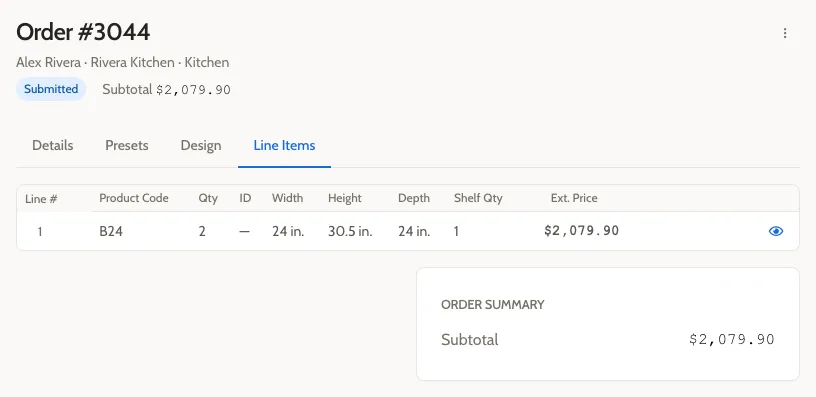
It’s now your manufacturer’s turn. An Order Manager there checks the order, adds shipping and any other charges, and sends it back to you to accept. You see only the subtotal until they send you the final price.
Get told when it’s ready
Section titled “Get told when it’s ready”To get an email when your manufacturer sends the price back:
- At the bottom of the left menu, select your name, then select Profile.
- Under Organization, select Notification settings.
- Check the Email box for Submitter Order Events.
It’s off until you turn it on. Without it, check the Orders page for orders waiting on you.
What you did
Section titled “What you did”- Added a homeowner as a customer, with their project and area.
- Added the project’s address.
- Created a quote for the kitchen, set its presets, and added a line item.
- Submitted it to your manufacturer.
Next steps
Section titled “Next steps”- When your manufacturer sends the order back to you, continue with part 2 to accept it.
- To plan the kitchen in the Room Planner instead of adding line items by hand, see Plan a room and turn it into a quote.
- Learn what you’ll see at each stage in Your order as a designer.