
Share a file with every project
Organization resources are files for every job, such as spec sheets, brochures, or install guides. They’re listed on the Resources page and on every project’s Files tab. Every Designer, Order Manager, and admin in your organization can download them.
Order Managers and admins can add, edit, archive, and restore them.
Add a resource
Section titled “Add a resource”- In the left menu, select Resources.
- Select Add resource.
- Fill in Title and Description, and choose the File. Files can be up to 50 MB: images, documents, and 3D or CAD files.
- Select Upload organization-wide.
- Read the confirmation, then select Upload to and your organization’s name.
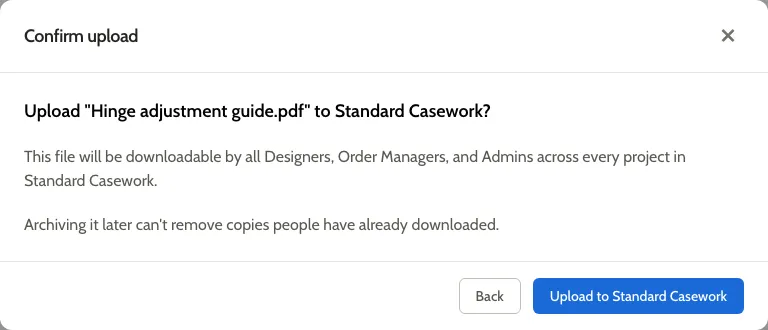
The resource appears on the Resources page, and on every project’s Files tab.
Change a resource’s title or description
Section titled “Change a resource’s title or description”Select Edit on the resource, change Title or Description, and select Save. The file itself can’t be replaced: to use a different file, add a new resource and archive the old one.
Archive or restore a resource
Section titled “Archive or restore a resource”- Select Archive on the resource. It’s removed from every project and from Designers’ view straight away, and moves to the archived resources at the bottom of the Resources page. Archiving can’t take back copies people have already downloaded.
- To bring one back, open the archived resources at the bottom of the page, select Restore, then Restore organization-wide.
Related
Section titled “Related”- Add files to a project for files about one job.