
Submit an order
An order is ready to submit when it has:
- at least one line item
- the customer’s contact name, email, phone number, and address (the company is optional)
- the project’s name and address
- an area name
The Details and Line Items tabs show a badge counting anything that’s missing. Each part of an address counts separately, so a missing project address shows as 4 missing fields.
-
Open the order.
-
Select Submit Order.
-
When you’re asked “Submit this order for review?”, select Submit order.
If you’re a designer, the message also says you won’t be able to return the order to a quote after submitting. Only an Order Manager can return it to quote.
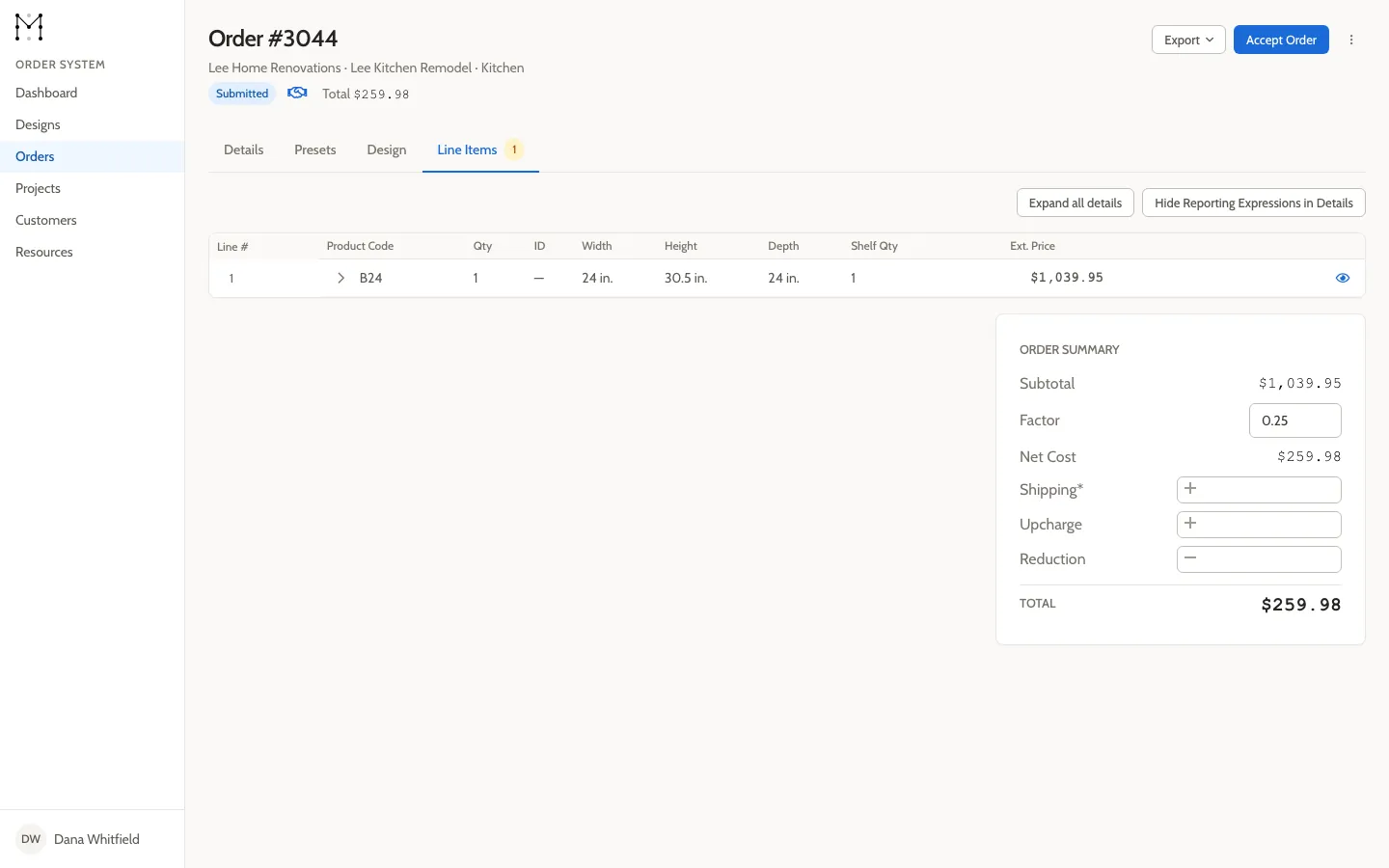
The status changes to Submitted. Order Managers who have order emails turned on get an email.
If you’re a designer, you’ll see only the subtotal until your manufacturer sends you the final price to accept. See Your order as a designer.
If you see “Not ready”
Section titled “If you see “Not ready””If something is missing, Mattersmith shows a Not ready message instead. Select Go to Details or Go to Line Items to see what’s needed. Empty required fields say Required to submit.
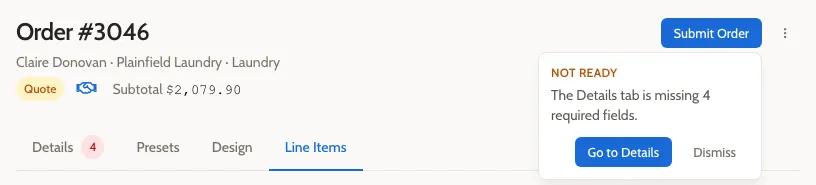
The message points to one tab at a time. After you fix what it lists, select Submit Order again. It may then point you to the other tab.
For a linked order, fill in the missing details on the customer or project itself. See Edit a customer and Add or change a project address.
After you submit
Section titled “After you submit”The order is locked. To change it, an Order Manager has to return it to quote. The submitter can also cancel it.
You’re the order’s submitter if you created it, even if a colleague submits it for you. If you’re an Order Manager and you created the order, you price it and accept it yourself. See Price and confirm an order and Accept an order.