
Save or discard Room Planner changes
The Room Planner doesn’t save as you go. Changes stay on your screen until you select Save or Discard in the planner’s toolbar. While there are unsaved changes, your browser tab’s title starts with a dot (•), and your browser asks before you leave the page.
Select Save. It turns gray once everything is saved.
On an order, saving is what changes the line items. Each cabinet you placed becomes a line item with a quantity of 1, a cabinet you changed updates its line item, and a cabinet you deleted removes its line item. Line items you added on the Line Items tab aren’t touched.
Save is only available once there’s something to save.
Discard
Section titled “Discard”- Select Discard, or choose Discard Changes from the ⋮ menu.
- In Discard unsaved changes?, select Discard Changes.
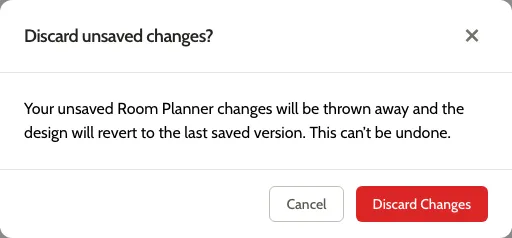
The design goes back to how it was when you last saved. This can’t be undone.
On an order’s Design tab
Section titled “On an order’s Design tab”- The Design tab shows an Unsaved badge while the design has unsaved changes. You can switch to other tabs and come back; the changes stay until you save or discard them.
- The Line Items tab only shows what’s been saved.
- You can’t submit the order or change its status until you save or discard: the order says “Save your Room Planner changes before changing the order status.”
- You can’t save new presets either; see Change presets on an order with a design.
On the Designs page
Section titled “On the Designs page”You can’t create a quote or duplicate the design until you save or discard.