
Set adjustments on a submitted order
Adjustments are extra charges (upcharges) or credits (downcharges) that sit in an order’s Order Summary, below Shipping. Your catalog decides which adjustments there are and what they’re called, so the names on your orders will differ from the examples here. Some catalogs have none.
Only Order Managers can set adjustments, and only while the order is Submitted.
-
Open the order and select the Line Items tab.
-
In the Order Summary, type an amount in each adjustment you need.
A + in the box means an upcharge, added to the total. A − means a downcharge, taken off it. Type the amount without a sign.
-
Press Tab after each amount to save it.
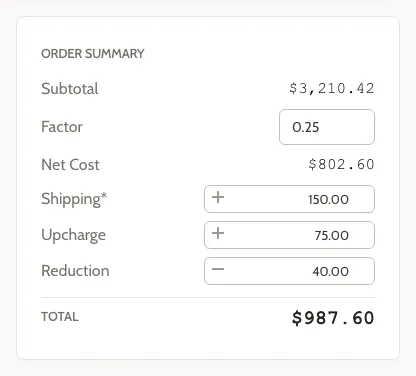
The Total updates as each amount saves.
Required adjustments
Section titled “Required adjustments”Every adjustment marked with an asterisk (*) needs an amount before the order can be confirmed or accepted, like Shipping. If one is missing, Confirm with Submitter (or Accept Order) shows Not ready; see If you see “Not ready”. 0 counts as an amount.
Adjustments without an asterisk are optional. To remove one, clear its box and press Tab.
Once you select Confirm with Submitter or Accept Order, the adjustments are locked. For what clears them, see Order Summary and totals.
Related
Section titled “Related”- Price and confirm an order
- Order Summary and totals explains every row and how the total is worked out.