
Create a quote from a design
Creating a quote turns a design into an order. Before you do it, know that:
- The quote gets the design’s catalog, presets, and room, and a line item for each cabinet. If the design is linked, the quote is linked to the same customer, project, and area.
- The design leaves your Designs list and can’t be edited any more. From then on, you change the room on the quote’s Design tab.
- A design can’t be added to a quote that already exists. Each design makes a new quote.
The Create quote button appears once the design has a saved room.
- Link the design to a customer, project, and area if you haven’t. You can also link the quote afterwards.
- If the Room Planner has unsaved changes, select Save in the planner.
- Select Create quote at the top right.
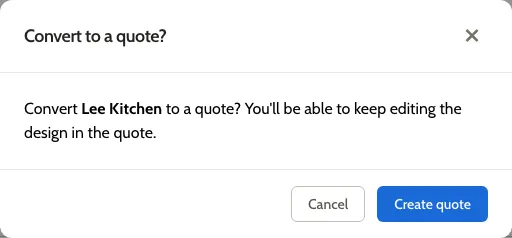
- In Convert to a quote?, select Create quote.
The new quote opens on its Line Items tab, with a cube icon at the end of each row that came from the design. You’re its submitter.
The new quote isn’t shared with your team. If colleagues need to edit it, select Share with team at the top of the quote. Designers have that button only if their manufacturer allows designers to share quotes; see Share an order.