
Create an order
A new order starts as a Quote, and you’re its submitter. You can start one from a customer, a project, an area, or the Orders page. Starting from the customer is the usual way: the order is linked to their saved details from the start.
From a customer
Section titled “From a customer”-
In the left menu, select Customers.
-
Type part of the customer’s name, company, or email in Search customers, then select their row.
If they don’t appear, check the search text, and if you’re an Order Manager, clear Only my customers if it’s checked. Designers see only customers they created.
-
Under Orders, select Create Order.
-
Choose the Project, then the Area.
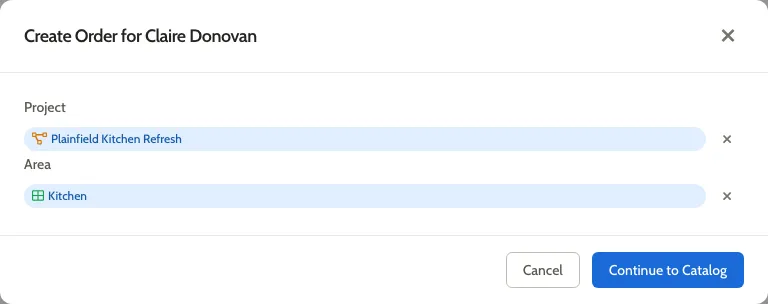
You can also type a new project or area name here to create it. A project created this way has no address yet, so add one before you submit.
-
Select Continue to Catalog.
-
Select the catalog to order from.
-
Leave Share with team checked to let other Order Managers edit and submit this quote, or clear it so only you can. Either way, every Order Manager can view it. If you don’t see Share with team, skip this step: designers only see it if their manufacturer lets them share quotes.
-
Select Create Order with Catalog.
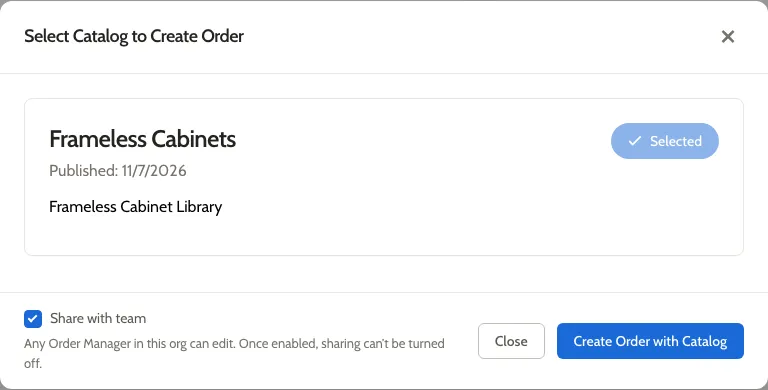
The new order opens on its Presets tab. Next, set its presets.
From a project or area
Section titled “From a project or area”-
In the left menu, select Projects, then find the project and select it.
To find it, type part of its name, or its customer’s name or company, in Search projects. If you’re an Order Manager and it doesn’t appear, clear Only my projects. Designers see only projects they created.
To start from an area, open the project’s Areas tab and select the area.
-
Select the Orders tab.
-
Select Create Order.
-
From a project, choose the Area and select Continue to Catalog. From an area, skip this step.
-
Select the catalog. If Share with team is shown, choose whether to leave it checked. Then select Create Order with Catalog.
From the Orders page
Section titled “From the Orders page”Use this when you don’t have a customer saved yet, or you’ll pick one later.
- In the left menu, select Orders.
- Select Create Order.
- Select the catalog. If Share with team is shown, choose whether to leave it checked. Then select Create Order with Catalog.
The order isn’t linked to a customer yet. Before you submit it, either link it to a saved customer, project, and area, or enter the details on the order. Linking is usually better: you enter the customer’s details once, and their other orders can use them too.
Share a quote later
Section titled “Share a quote later”If you created a quote without sharing it, you can share it while it’s still a Quote. See Share an order or customer with your team.