
Link an order to a customer, project, and area
A linked order takes its customer, project, and area details from your saved records, so you don’t have to type them into each order. You can only change links while the order is a Quote.
Link to existing records
Section titled “Link to existing records”- Open the order and select the Details tab.
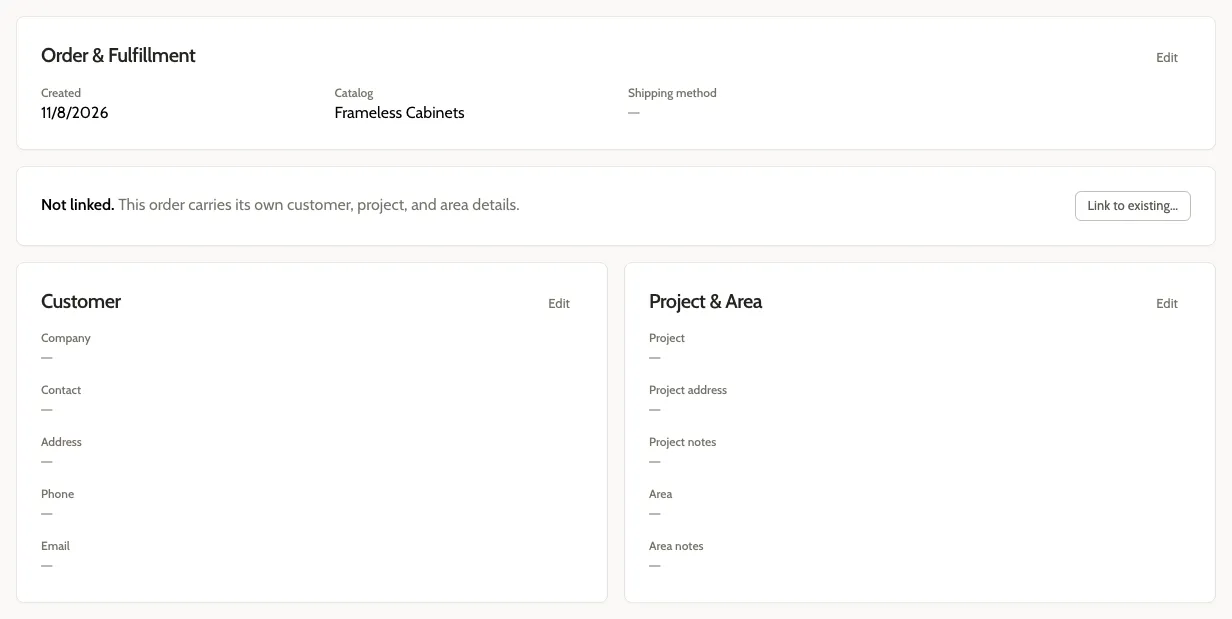
- Select Link to existing…
- In Customer or project, start typing a customer’s name, email, or project name, then select a match from the list.
- Choose the Project and Area, if they aren’t already chosen.
- Select Link.
The Details tab now shows Linked records with the customer, project, and area.
You can only link to customers the order’s submitter created. Order Managers can also link to customers shared with the team; if a colleague’s customer is missing, ask them to share it. Designers can link only to their own customers.
Create new records while linking
Section titled “Create new records while linking”If the customer, project, or area doesn’t exist yet, you can create it from the same window.
- On the Details tab, select Link to existing…
- Choose what to create:
- A new customer: type their name in Customer or project and select Create new customer “…”. Then type a new project name in Project. If Share with team is shown, leave it checked to let other Order Managers edit the new customer, or clear it. Designers don’t see it.
- A new project for an existing customer: choose the customer, then type the project name in Project and select Create new project “…”.
- A new project needs a new area. Type its name in Area.
- Select Link.
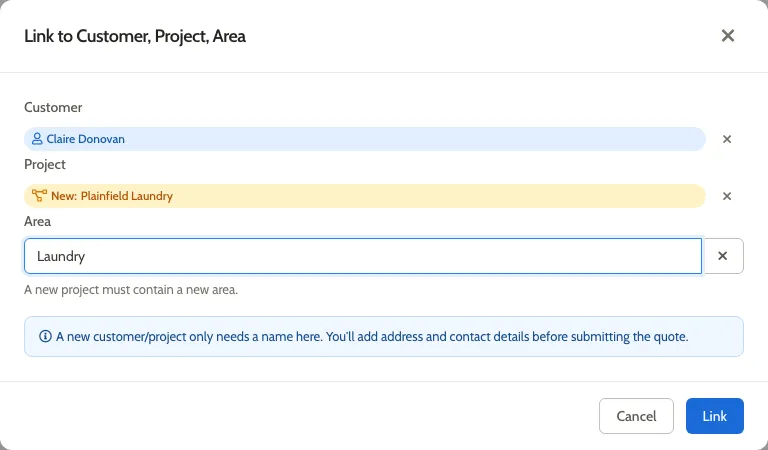
New records created this way only have a name. Add the address and contact details before you submit the order. See Edit a customer and Add or change a project address.
Change or remove a link
Section titled “Change or remove a link”On the Details tab:
- Change link links the order to a different customer, project, or area.
- Unlink or clear… either unlinks the order and keeps an editable copy of the details on the order (Unlink), or removes them completely (Clear).
Enter details without linking
Section titled “Enter details without linking”An unlinked order carries its own customer, project, and area details. On the Details tab, select Edit on the Customer and Project & Area cards to type them in.
Related
Section titled “Related”- Linked orders explains what linking does and why.
- Permissions covers who can change an order’s link.