
Place and arrange cabinets
Once the room is generated, the Cabinet Library on the left lists the products in the design’s catalog. When you save an order’s design, each cabinet you placed becomes its own line item with a quantity of 1.
Select Save after placing or moving cabinets. Nothing is kept until you do; see Save or discard Room Planner changes.
Place a cabinet
Section titled “Place a cabinet”-
In Cabinet Library, select the cabinet. Type in Filter cabinets… to narrow the list.
-
Move the pointer onto the room and click where the cabinet goes.
Near a wall, the cabinet turns to face into the room and sits against it. Near another cabinet, it lines up beside it.
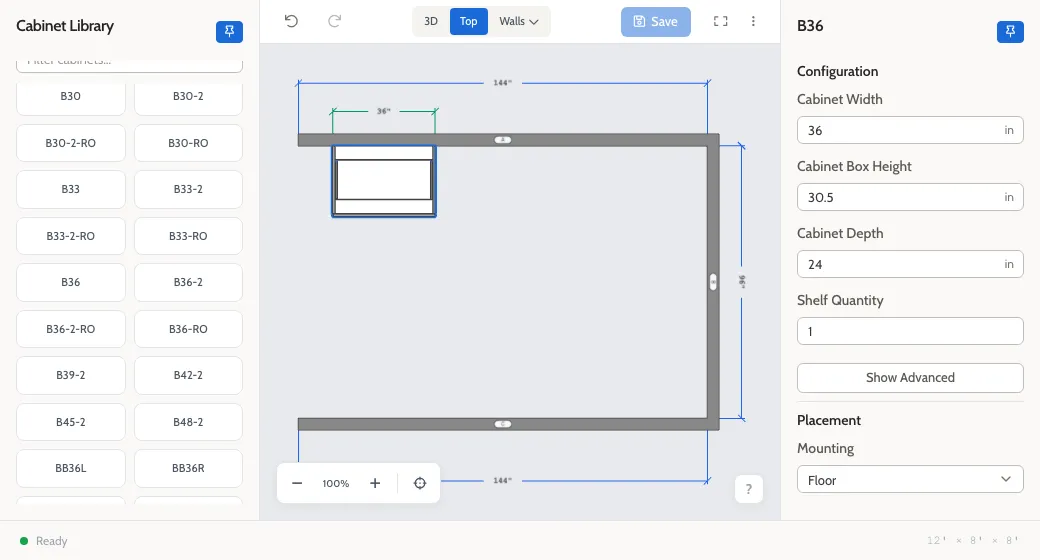
To place several of the same cabinet, hold Shift while you click. To put a cabinet back without placing it, select it in the library again or press Escape.
You can place cabinets in the Top, 3D, and wall views. In a wall view, the cabinet goes on that wall.
Select cabinets
Section titled “Select cabinets”- Click a cabinet to select it. Its options open on the right.
- Hold Shift and click more cabinets to add them to the selection, or click a selected one to take it out.
- Hold Shift and drag across empty floor to select every cabinet the box touches.
- Click empty floor, or press Escape, to clear the selection.
Move a cabinet
Section titled “Move a cabinet”- Drag it. Every selected cabinet moves together. It snaps to walls and to other cabinets.
- Nudge it with the arrow keys. Each press moves it by the Nudge amount in the right-hand panel: ½ inch unless you change it. Hold Shift for four times as far, or Alt (Option on a Mac) for a quarter.
- Use the buttons under Nudge (Relative to Wall) in the right-hand panel: In and Out move it toward or away from its wall, and L and R slide it along the wall.
- Type a position under Placement: Height off floor (for wall cabinets, choose Wall in Mounting) and Rotation in degrees.
Rotate, copy, or delete
Section titled “Rotate, copy, or delete”Right-click a cabinet for Duplicate, Rotate 90°, and Delete.
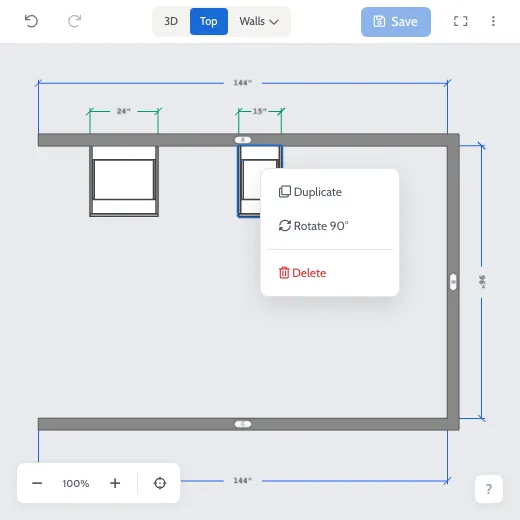
- Duplicate places a copy beside each selected cabinet.
- Rotate 90°, or the R key, turns one cabinet a quarter turn. It’s only offered when one cabinet is selected.
- Delete, or the Delete key, removes the selected cabinets. On an order, saving removes their line items too.
To undo a change, select the undo button above the room or press Ctrl+Z (⌘Z on a Mac). The planner remembers the last 25 changes.
Related
Section titled “Related”- Change a cabinet’s options
- Room Planner controls lists every mouse and keyboard control.