
Your first quote as a designer, part 2: accept the final price
In part 1 you submitted a quote for Alex Rivera’s kitchen. Your manufacturer has since set the final price and sent it back for you to accept. In this part you’ll check the final price and accept it, so the order can go into production.
It takes about five minutes.
Before you start
Section titled “Before you start”Your order from part 1 needs to be in Pending Confirmation: your manufacturer has sent you the final price and it’s waiting on you. If you turned on Submitter Order Events, you got an email when it was. If the order still shows Submitted, reload the page to check for an update. If it still shows Submitted after reloading, your manufacturer hasn’t sent it back yet.
Find the order
Section titled “Find the order”- In the left menu, select Orders.
- In the filter box, type
status:pendingConfirmationand press Enter. - Select the order’s number to open it.
The top of the order shows a Pending Confirmation status badge, the total, and an Accept Order button.
Check the final price
Section titled “Check the final price”- Select the Line Items tab.
- Look at the Order Summary. It now shows the shipping price and any other charges your manufacturer added, and the Total.
- If Expand all details appears above the line items, select it and read any Manufacturer notes on them. If it doesn’t appear, there are no notes or other details to open.
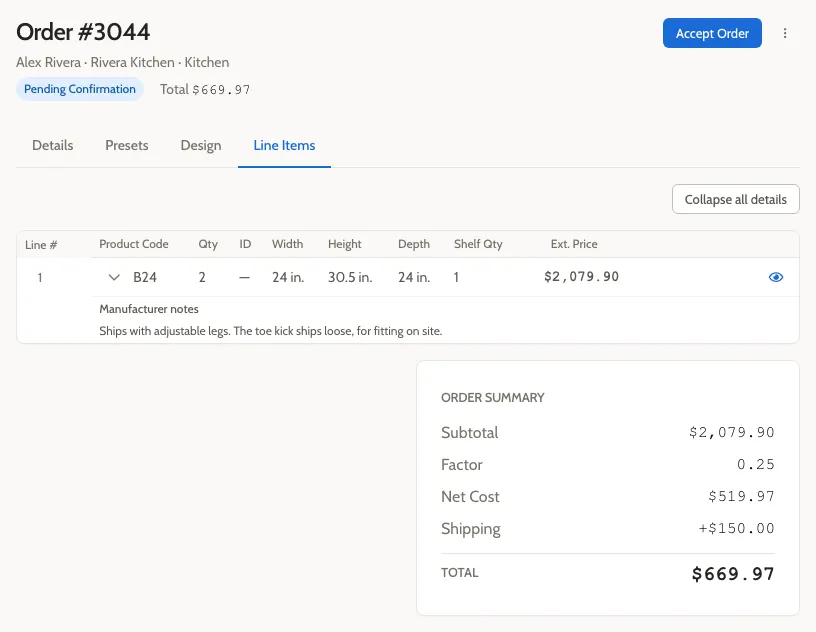
This is the price you’re agreeing to, so it’s the time to check it with the homeowner.
Accept the order
Section titled “Accept the order”- Select Accept Order.
- When you’re asked to accept the order, check that the total is the one you agreed with the homeowner, then select Accept order.
The status changes to Accepted, and the price is now final. You can’t cancel the order after accepting it.
What happens next
Section titled “What happens next”Your manufacturer schedules the order, builds it, and ships it. You can follow it on the Orders page as its status moves to In Production, Staged, and Shipped.
Once it’s accepted, you can’t cancel it. If something needs to change, contact your manufacturer.
What you did
Section titled “What you did”- Found the order your manufacturer had sent back.
- Checked the final price and the manufacturer’s notes.
- Accepted it.
Next steps
Section titled “Next steps”- If the price isn’t right, you don’t have to accept it. See Accept an order for what to do instead.
- Learn why the price only appears now, and what you see at each stage, in Your order as a designer.